

Collaborate on work items
Now that you can create and manage work items, let's learn how to collaborate with your team.
In this tutorial, you'll:
- Use comments and @mentions for effective team communication
- Create sub-work items to break down complex tasks
- Navigate your Inbox for notifications and updates
- Configure email notifications to stay informed
- Track activity and manage collaborative workflows
Add your first comment
Start conversations that move work forward effectively.
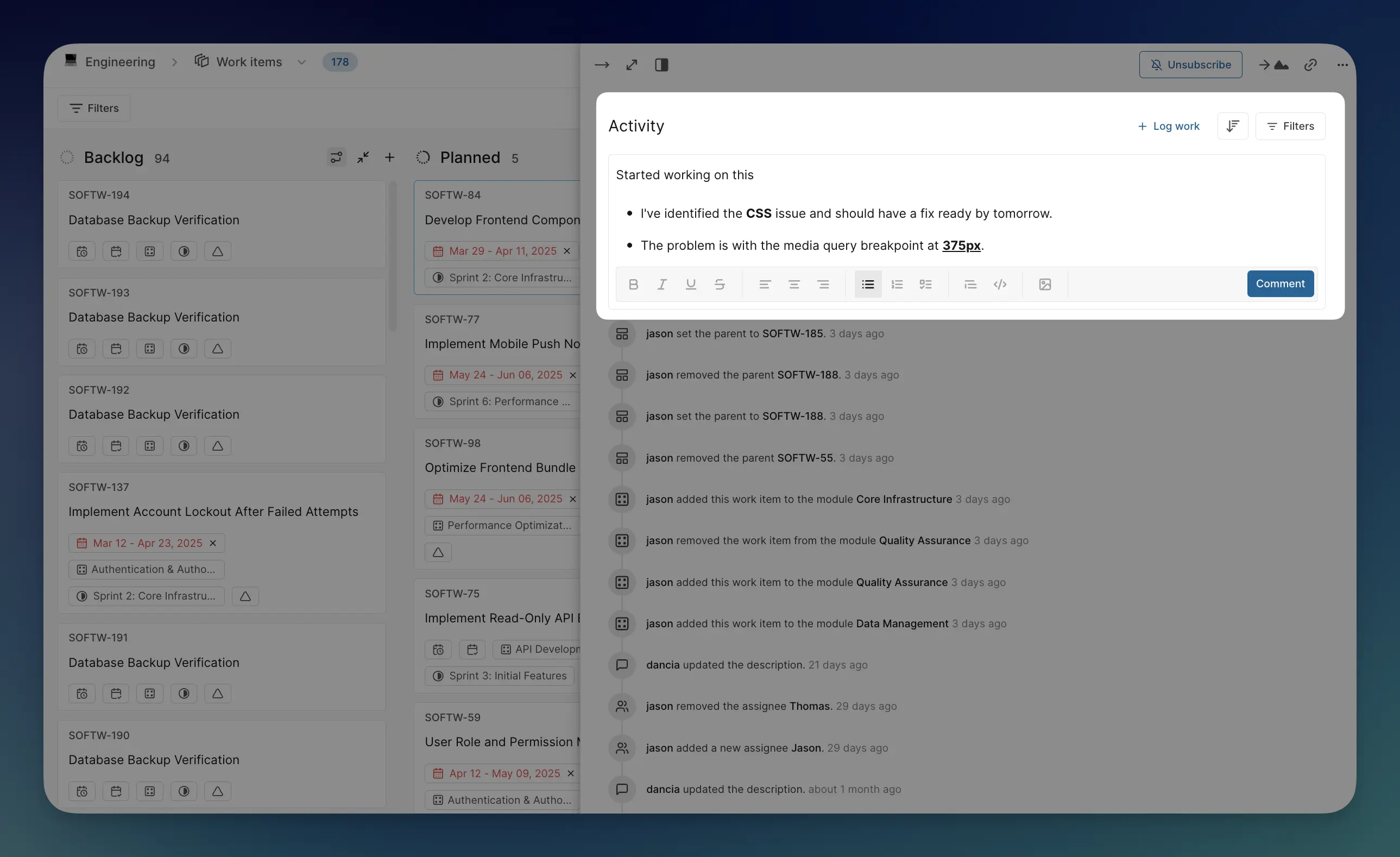
Open a work item for collaboration
- Navigate to your project and go to Work items,
- Click any work item to open it.
Add a meaningful comment
- Scroll to the Activity section.
- Click in the Add comment text area.
- Write a comment that provides value to the team.
Example
Started working on this - I've identified the CSS issue and should have a fix ready by tomorrow. The problem is with the media query breakpoint at 375px.
Use formatting options
- Bold important information with text.
- Create lists for multiple points.
- Add code snippets or quotes.
Post your comment
- Click Comment to publish.
- Your comment appears in the activity timeline.
- Relevant team members receive notifications.
Use @mentions
Ensure the right people see important messages and requests.
- Type @ followed by a team member's name.
- Select the person from the dropdown that appears.
- Continue writing your message with context.
Divide work with sub-work items
Organize large tasks into manageable, assignable pieces.
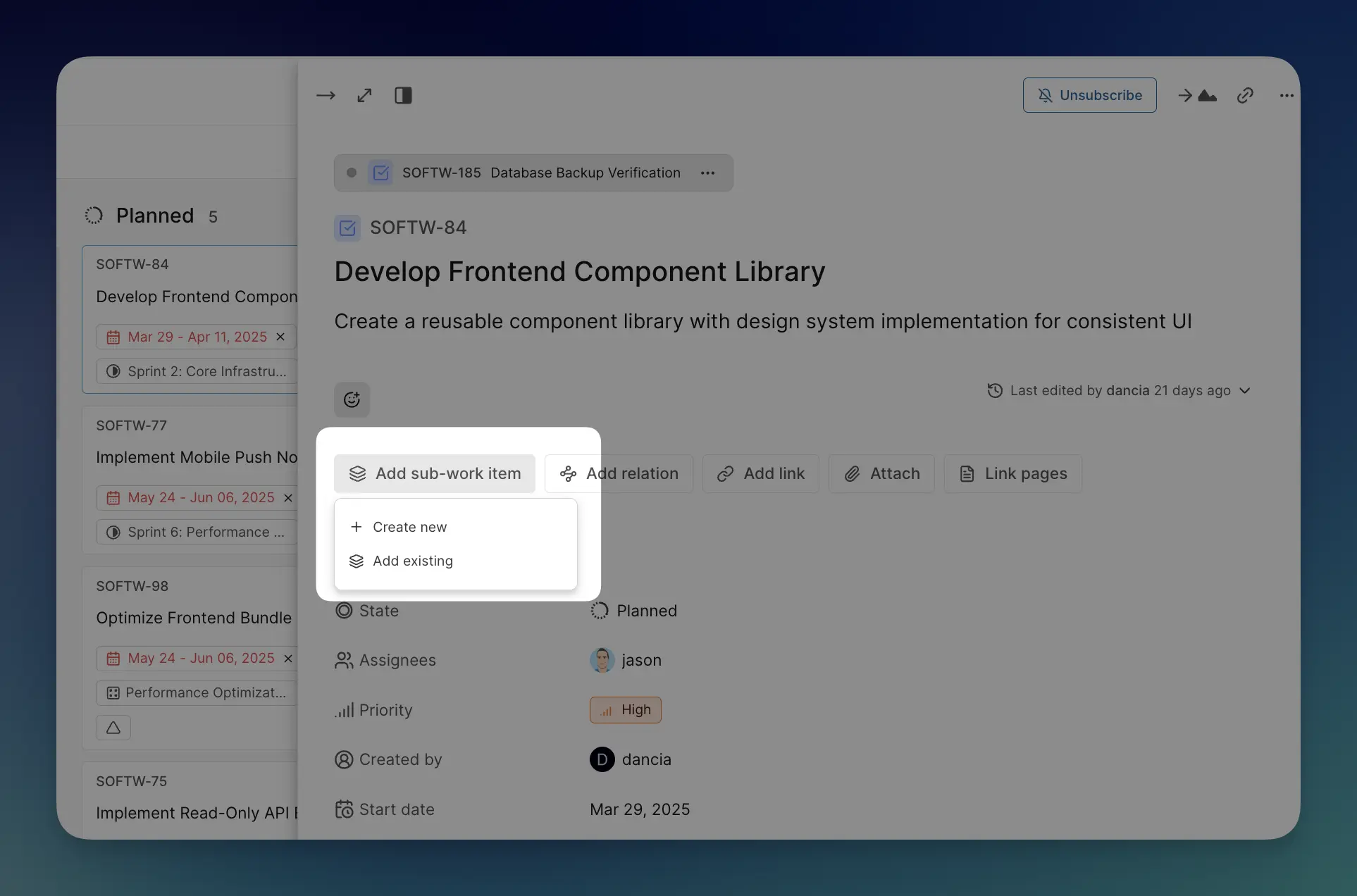
- Use sub-work items for:
- Large tasks requiring multiple steps
- Tasks needing different skills or team members
- Work that can be done in parallel
- Add a sub-work item
- In your work item, look for Add sub-work item button.
- Click to create a related, smaller task.
- Fill in the sub-item details with specificity.
Example
Parent task: "Implement user authentication system" Sub-work items:
- "Design login page wireframes" → Designer
- "Set up authentication database tables" → Backend developer
- "Create password reset flow" → Frontend developer
- "Write user registration API endpoints" → Backend developer
- Understand sub-item benefits
- Each sub-item has independent lifecycle and can be worked on separately.
- Team members focus on specific sub-items while staying connected to bigger picture.
- Clear ownership and accountability for different aspects of complex work.
Track activity and filter updates
Stay informed about work progress without information overload.
Understand the Activity section The activity feed shows chronological updates:
- Work item changes: State updates, priority changes, assignment changes.
- Comments: Team discussions and communications.
Use activity filters
- Click Filters button in the Activity section.
- Control what information you see:
- Updates: Show only property changes (state, priority, assignments)
- Comments: Display only team discussions and communications
- Worklogs: View only time tracking entries
Use activity tracking strategically
- Catch up quickly: See what happened while you were away.
- Understand decisions: Read discussions that led to changes.
- Track progress: Monitor how work moves through workflow.
- Maintain context: Keep team members informed of important developments.
Explore your notification center
Understand how Plane keeps you informed about team activity.
Discover the Inbox
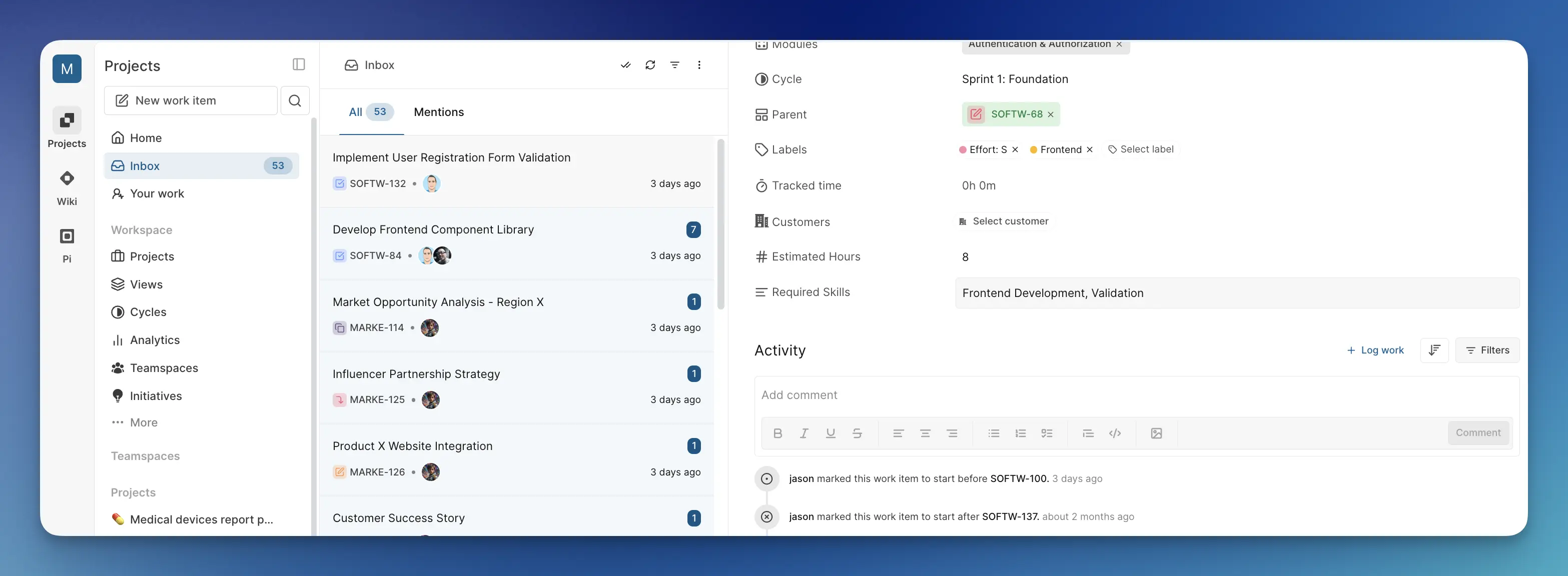
Navigate to your Inbox
- Click Inbox in your sidebar.
- This is your notification center for all workspace activity.
Understand Inbox organization
- All tab: Shows all notifications and updates.
- Mentions tab: Filters to only @mentions directed at you.
- Notifications include comments, work item changes, and mentions.
Configure notification preferences
Set up email notifications to stay informed about important updates.
Access account settings
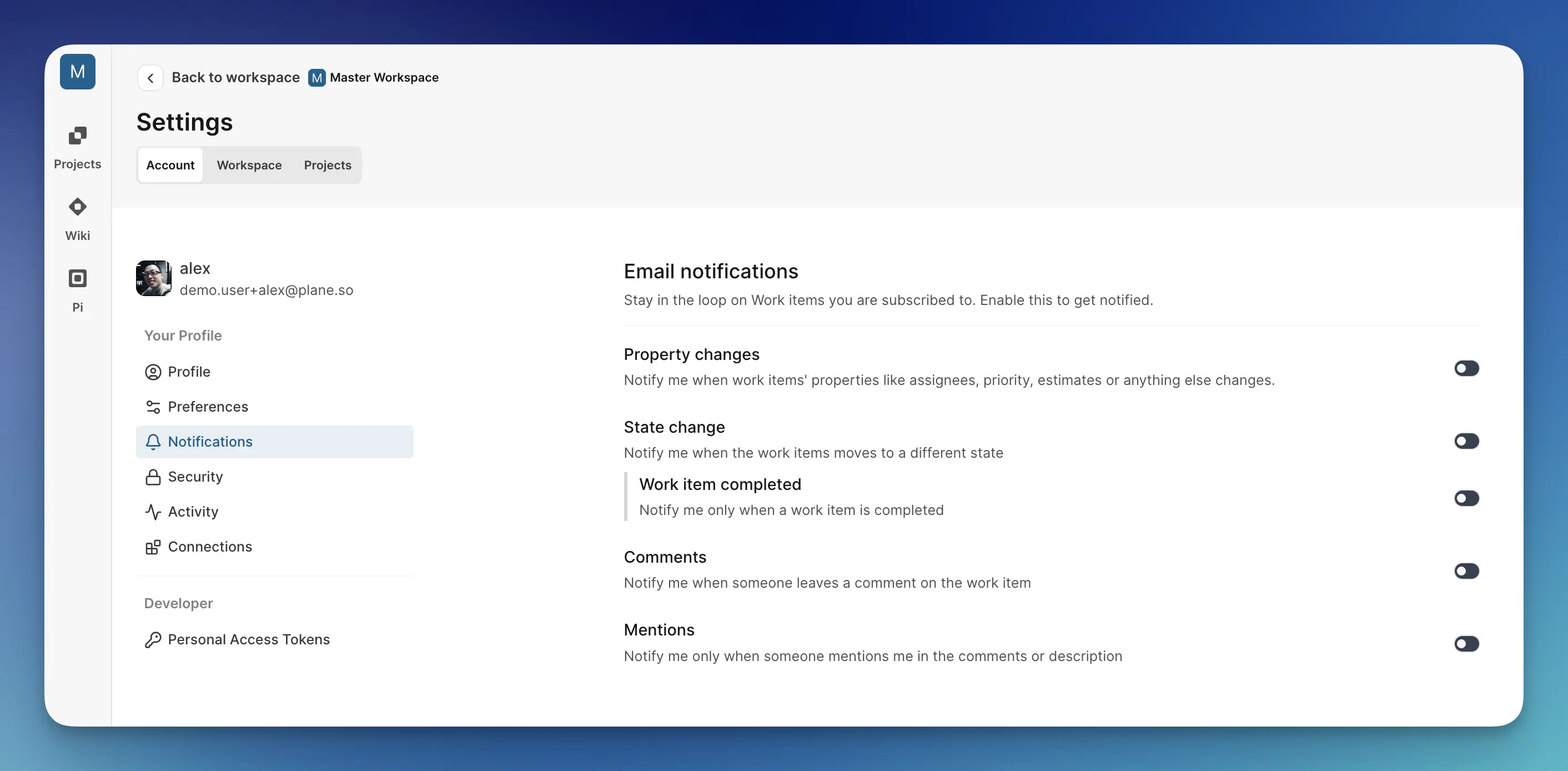
Open your account settings
- Click your profile avatar (bottom of sidebar).
- Select Settings from the dropdown.
- Select Notifications in the left pane.
Ensure all notifications are enabled
- This ensures you receive email updates about all important work item activity.
Understand notification triggers
You receive notifications when:
- Someone @mentions you in comments.
- Work items assigned to you are updated.
- Work items you created have activity.
- Someone comments on work items you're subscribed to.
What's next?
Your collaboration skills are solid! You're ready to:
- Create custom views to filter and organize work items for different contexts.